
Create decks with AI
Transform your text documents, PDFs, codebase, or other source material into interactive cards with just a prompt, or work with an AI assistant to create a deck from scratch. The SuperCards Exchange Format is a documented JSON format that any LLM can write to produce a file that SuperCards can import as a native deck. Here, you can learn how to use it with your favorite model.
Two official Claude integrations install in a couple of minutes. Not using Claude? Work with any other popular LLM using the universal prompt below.
Recommended · Claude Desktop on macOS
Claude Desktop extension
The flagship integration is a one-click extension for Claude Desktop that connects Claude directly to the SuperCards app on your Mac. Ask for a deck and Claude checks its own output against SuperCards' real import validator, fixes what it got wrong, stages the finished bundle — images included — and hands it to the app. Review the deck in the import inbox and click to add it to your Library.
Download the extension SuperCards.mcpb · v1.0.0 · 172 KB · Updated July 2026
SHA-256: 6e59b0d3cf65ff879d1238c2ae438f48ec627499f63ac0a7f0e0856bc27ace5e
What you need
- SuperCards 0.6.1 or later on an Apple Silicon Mac
- Claude Desktop for macOS, signed in
Install
- Download
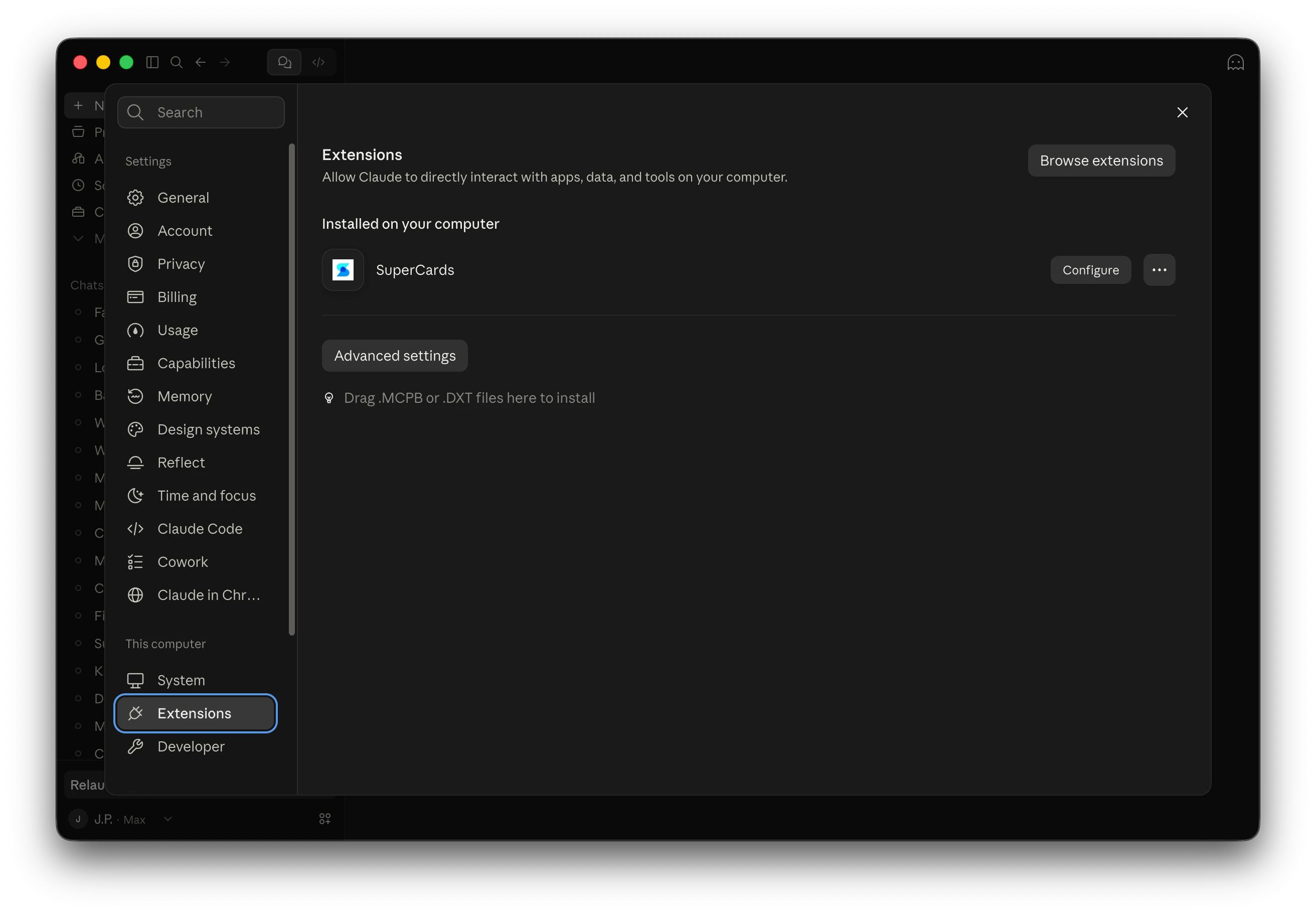
SuperCards.mcpbwith the button above. - In Claude Desktop, open Settings → Extensions, shown in the screenshot below. Depending on your Claude Desktop version this area may be labeled Connectors.
-
Drag
SuperCards.mcpbonto the Extensions screen. If the drop doesn't take, click Advanced settings on the same screen and install the file from there. - Confirm the install when Claude Desktop shows the SuperCards extension details.
-
Confirm that the extension lists four tools (
get_spec,get_examples,validate_deck,submit_deck). The SuperCards Home screen flips to Connected the first time Claude pings the app.
Your first deck
Start a new conversation, attach any source material, and ask for a deck — see the prompting tips for guidance. When Claude has finished creating it, a notification appears on the 'S' icon in your Mac's menu bar (and in the main app window if you have it open) and the deck waits in the import inbox until you decide to review it. The app doesn't need to be running to receive the deck.
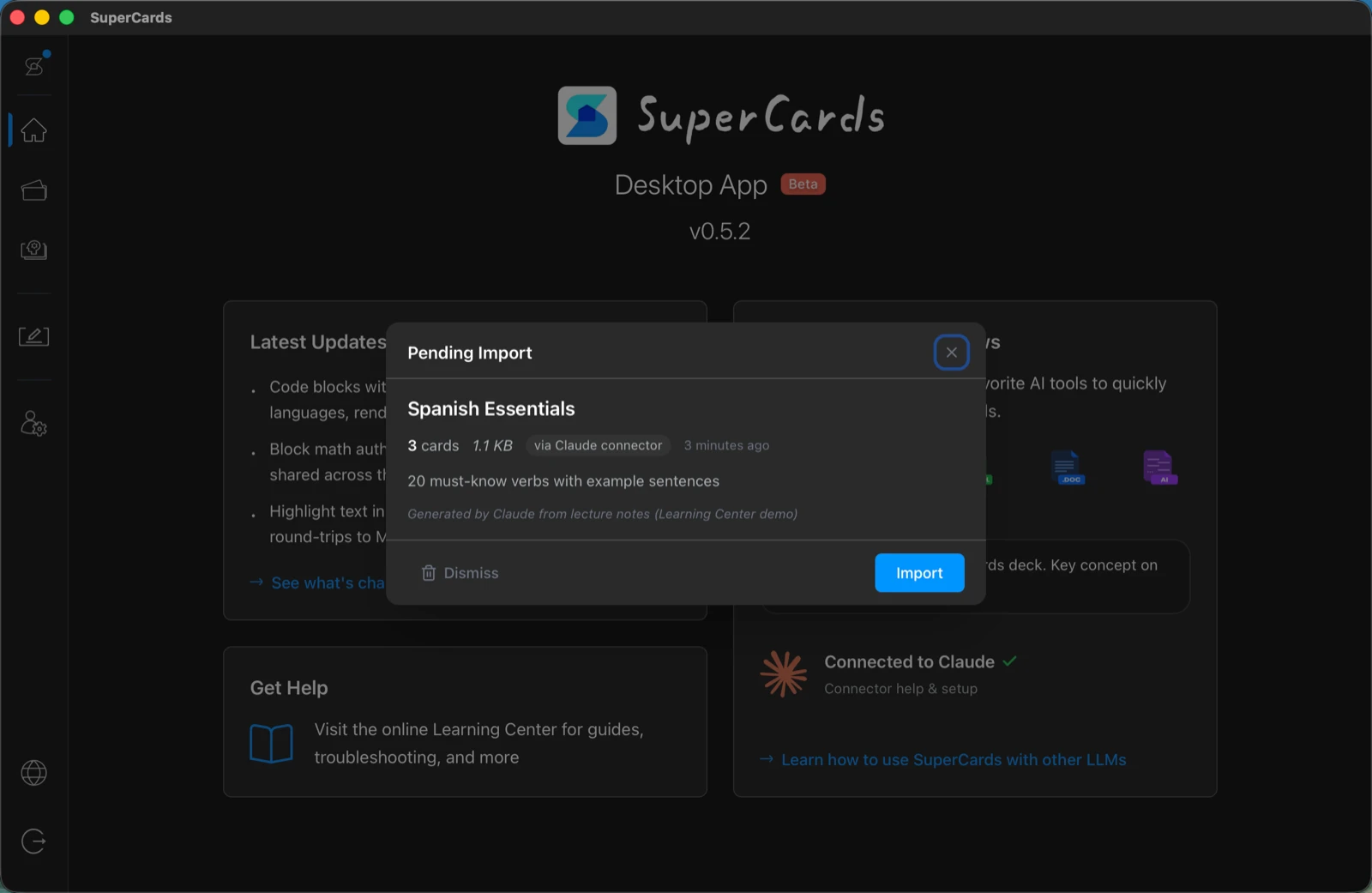
If Claude says it couldn't read or attach a file, that's usually macOS privacy permissions (not a dead end). Import the deck anyway — the inbox lists exactly what's missing and gives you a drop zone to add those files yourself.
For claude.ai on the web
claude.ai Skill
Using Claude in the browser? The SuperCards Skill teaches claude.ai how to create a file you can import into the app.
Upload the Skill once in claude.ai's settings; from then on, ask for a deck and Claude
delivers a single .supercards
file that the app can import.
supercards-deck-authoring.zip · 22 KB · built July 2026 · don't unzip it
SHA-256: 621b8ab576e423689970a5cdf8fa42f33f355373df0d45c3443e8a0d5d91aa6f
What you need
- A claude.ai account with the two settings below available (if you don't see them, your plan may not include Skills yet)
- SuperCards 0.6.1 or later on your Mac to import the result
Install
- Download
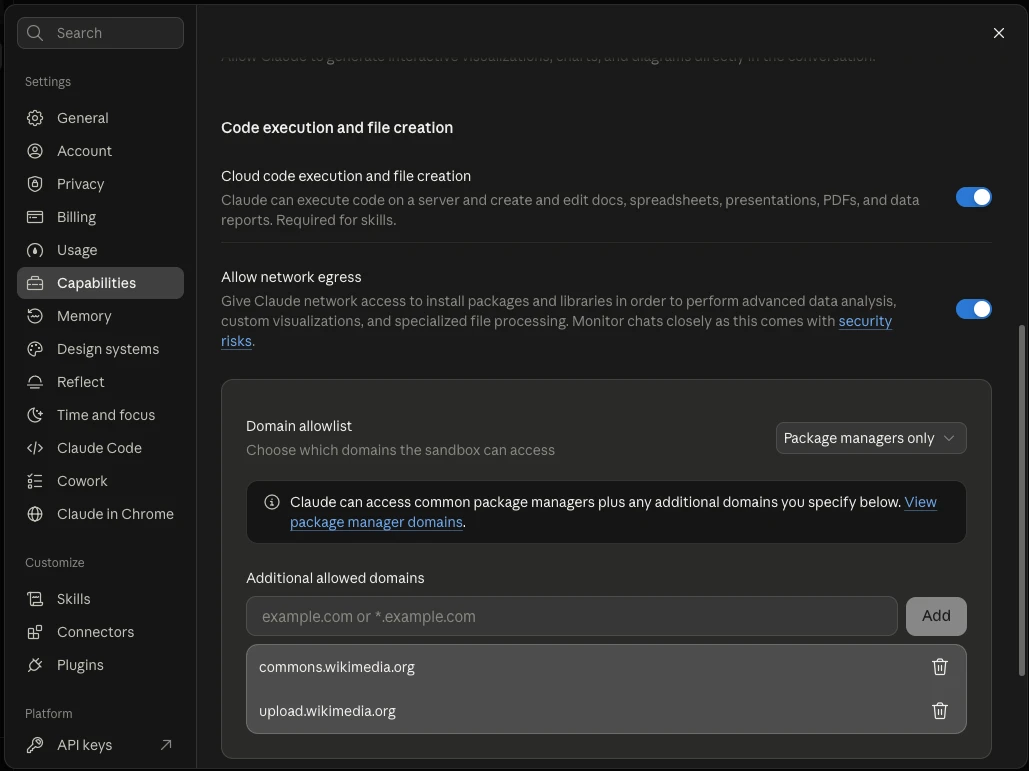
supercards-deck-authoring.zipwith the button above, and leave it zipped. - In claude.ai, open Settings → Capabilities and turn on Cloud code execution and file creation (labels as of October 2026 — the dated screenshot below shows where).
- In the same Settings sidebar, open Skills (under Customize), choose Upload skill, and select the zip.
- Confirm SuperCards deck authoring appears in your Skills list, toggled on.
Your first deck
- Start a new chat, attach your source material — notes, a PDF, photos — and ask for a deck (the prompting tips apply here too).
- Claude drafts the deck and runs its pre-flight check, then hands you one
.supercardsfile to download. Photo-heavy decks will be larger and take longer to download. - Double-click the file — SuperCards opens with the deck waiting in the import inbox — or drag it onto the SuperCards window if the app is already open. Review, then click Import.
Working with other LLMs
Use the universal prompt template with ChatGPT, Gemini, Grok, or a local model — anything that writes JSON can write a SuperCards deck.
Just click the button below to copy it, then paste it into your assistant along with any source material and instructions. When the model is finished, save the
output as a .supercards.json
file, and import it with the desktop app following the steps below.
I want you to create a deck of study notecards in the SuperCards Exchange Format (SEF).

First, read the format reference at https://www.supercards.io/sef/llms.txt — it defines the JSON structure, the markdown profile, and how to design good cards. If you can't browse the web, follow the fallback rules below instead.

Then turn the source material I give you into one deck:
- Output a single JSON code block and nothing else, so I can save it as {deck_name}.supercards.json
- One concept per card: the front asks or names, the back answers or explains
- 10-30 cards unless I say otherwise; fill in deck.source with where the content came from
- Only reference images you are sure exist (exact uploaded filenames or verified direct URLs)

Fallback rules (only if you couldn't read the reference):
- Root object: {"supercards_format": "1.1.0", "deck": {...}, "cards": [...]}
- deck: title (required), summary, source. Each card: front (required, at least 1 block) and optional back, both arrays of blocks
- Blocks: {"type": "text", "text": "...", "role": "heading|subheading|body|caption|label"} or {"type": "image", "src": "filename or https URL", "alt": "...", "size": "small|medium|large|full-width"} or {"type": "code", "code": "...", "language": "python"}
- Text is markdown by default: **bold**, *italic*, ==highlight==, inline code, lists, and fenced code blocks render. Markdown headings, links, and tables do not — use a separate block with role "heading" instead of # syntax
- No LaTeX or math blocks — write notation as plain text
- A single newline is a line break; a blank line starts a new paragraph

Here is my source material:
[PASTE YOUR NOTES, ARTICLE, OR TEXT HERE]
Prompt targets SEF format 1.1.0 · guidance revision 2026-07-05 · full reference at /sef/llms.txt
Import your deck
Once you have your .supercards.json
file, follow these steps to import it:
- Create a new folder on your Desktop. Any name works: the deck's title comes from the file, and you can change it before you import.
-
Drag the
.supercards.jsonfile into the folder, along with any image files the deck refers to by filename. Keep it to one deck file per folder. -
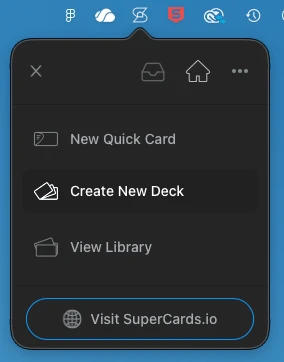
Click the SuperCards S icon in your Mac's
menu bar and choose Create New Deck.
Create New Deck opens the Deck Builder · October 2026 -
In the Deck Builder, under Import Cards,
click the folder field and select the folder that holds your deck file. SuperCards
checks the file and fills in the deck's title and summary.
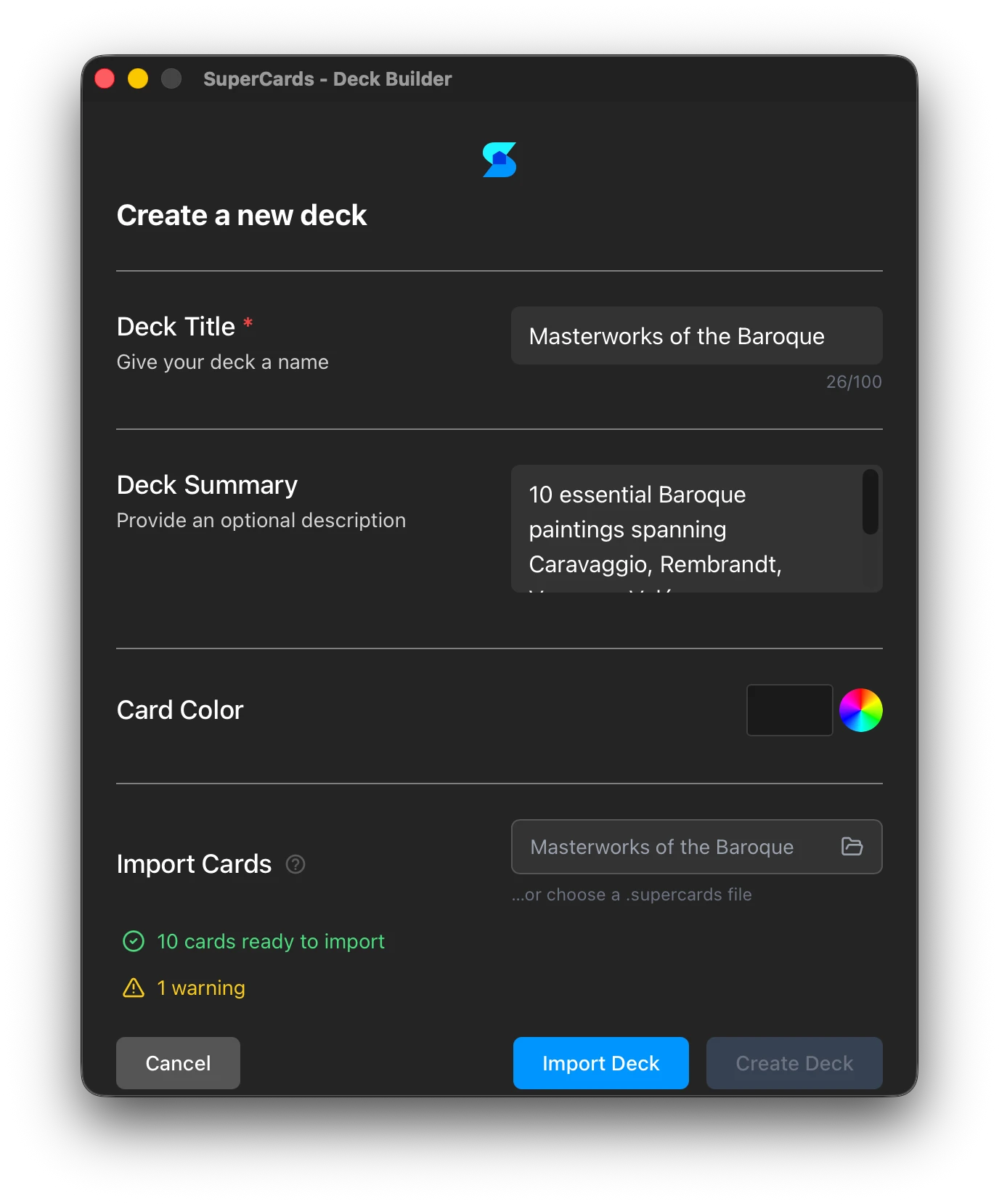
A deck checked and ready to import · October 2026 - Click Import Deck to open the deck in the Card Editor. A yellow warning count means something was left out, such as an image that couldn't be found. That's common, and it won't block the import.
Prompting tips
"Make me a deck from this document" works, but no matter which model you're using, you'll get better results if you clearly spell out what you want. Basically, the more context you give, the better the deck will be. Some pointers to keep in mind:
- Start with why. Tell the model what your goal is. Are you studying for an exam, preparing for a presentation, or learning a new topic or skill?
- Say what counts as one card. "One exercise per card," "one verb per card," "one API endpoint per card" — directions on how to segment each card go a long way.
- Say how many. "All ~70 movements in the book" and "just the 20 I'd actually drill" are both great decks; leaving it unsaid is a coin flip.
- Name the order. If sequence matters — chapters, steps, difficulty — say so. Card order survives import.
- Steer emphasis and style. "Big definitions on fronts with mnemonics on backs," "code on fronts with plain-English backs" — whatever helps you remember, ask for it.
- Attach source files. If you want to create a deck from existing material, attaching it to the conversation provides useful context. Say which images matter and where they belong.
For toolmakers
- SEF overview — the format and its published artifacts
- JSON Schema — machine-readable, CORS-open
- Examples — a complete deck that imports as-is, and the minimal valid file