Using the Card Editor
Note: Set device selection in User Settings for best experience: Canvas designed to reflect size of your phone!
The Card Editor is SuperCards' core content creation feature, providing a dedicated editing environment where you can create and edit cards with rich text and image elements. It operates as a standalone window with two distinct modes:
- Quick Card Mode: For creating/editing cards in the Brain Dump
- Deck Mode: For creating/editing cards within a specific deck
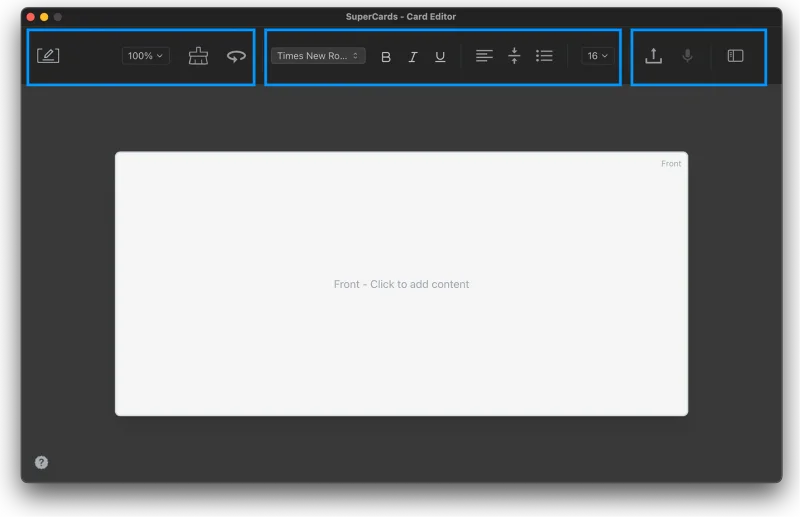
The Card Editor launches with a vertical side panel on the right to enable saving and cycling through cards. The precise panel configuration depends on which mode is active. You can learn more about each unique configuration in the next section. For now, we'll look at the horizontal toolbar spanning the top of the editor.
Card Editor Toolbar
The editor toolbar is always present regardless of which mode you're in.Card Actions (Left Section):
- Card Editor Icon: Opens menu for recent cards, close app
- Zoom Selection: Adjust your view of the card face.
- Clear Card: Delete all content from the currently visible card face.
- Flip Card: Toggle between a card's front and back faces
Text Editing Tools (Center Section):
- Font Family: Select a font
- Font Style: Bold, italic, underline buttons
- Horizontal and Vertical Alignment: Context-aware alignment controls
- List formatting: Bullet lists, numbered lists
- Font Size: Choose a font size
Media and View Buttons (Right Section):
- Image Upload: File picker for images (auto-scales selected images to fit onto the card face)
- Microphone: Speech-to-text tool (coming soon!)
- Panel Toggle: Show/hide right sidebar panel