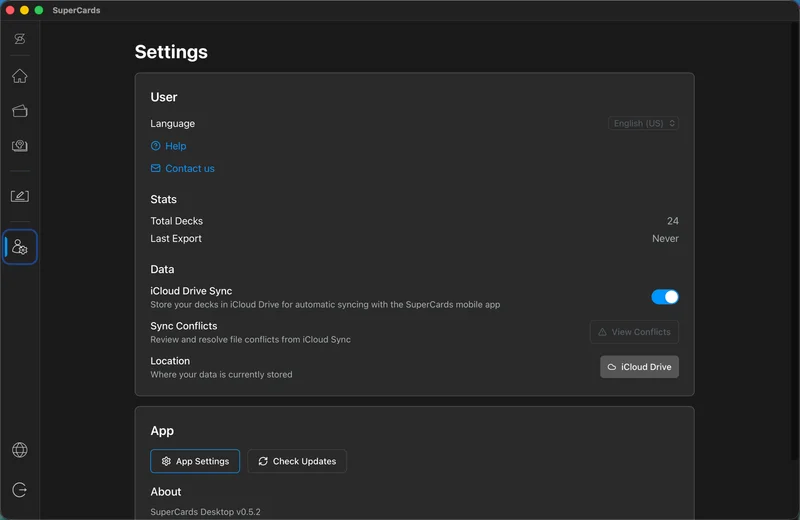
Syncing with iCloud
SuperCards uses your own iCloud Drive to keep decks in sync between your Mac and iPhone — no accounts, no SuperCards servers. Turn it on once, and every deck you create or edit appears on your iPhone automatically, usually within seconds.
Turn on iCloud sync
- Open Settings in the main window
- In the Data section, switch on iCloud Drive Sync
- Confirm the migration — SuperCards moves your library into iCloud Drive and shows its progress while it works
That's it. The Location row in Settings always shows where your data lives, and the iOS app reads the same library — so new decks and edits show up on your iPhone with no export or transfer step.
If the toggle is grayed out with "iCloud Drive is not available on this device," sign in to iCloud in System Settings and make sure iCloud Drive is enabled.
Working offline
SuperCards works fully offline — your library is just files on your disk. When you're back online, iCloud picks up where it left off and syncs your changes.Sync conflicts
If the same card or deck is edited on two devices before they sync, SuperCards detects the conflict instead of guessing. In Settings, the Sync Conflicts row shows a View Conflicts button (with a badge when any are waiting). For each conflict you choose Keep Local or Keep Remote, and that version wins everywhere.If a move times out
Moving cards between decks while iCloud is busy syncing can occasionally time out — you'll see "Move timed out — iCloud may be busy. Please try again in a moment." Nothing is lost; just retry after a moment.If SuperCards is slow to open
When your Mac runs low on disk space, macOS can move your library's files out to iCloud to make room, and SuperCards slows down while it fetches them back. Slow startup with iCloud sync has the fixes.Prefer to keep everything local? Leave the toggle off and your library stays on your Mac. Either way, here's how SuperCards stores your data.