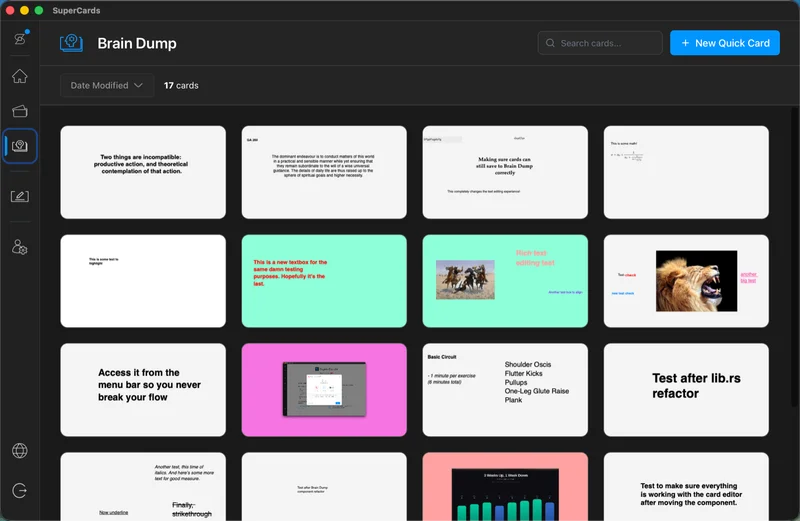
Using the Brain Dump
The Brain Dump is SuperCards' capture-first scratch space: jot the idea now, organize it later. Every Quick Card you create lands here until you assign it to a deck.
Capturing
The fastest route is the menu bar: click the SuperCards icon and choose New Quick Card. The Card Editor opens on a blank card so the thought lands before it evaporates — no deck to choose, no window juggling. You can also click New Quick Card on the Brain Dump page itself.Reviewing your captures
The Brain Dump page in the main window shows every unassigned card as a preview tile, newest first, with search to find anything by content. Click a card to select it, and right-click for the actions:- Edit Card — open it in the Card Editor
- Assign to Deck — move it into any deck, with a searchable deck picker
- Duplicate Card — copy it (the copy gets "(copy)" added to its title)
- Delete Card — with confirmation
Working in batches
Select several cards at once (Cmd-click to toggle, Shift-click for a range, Cmd + A for everything) and assign or delete them together — Assign to Deck moves the whole selection in one step, so nothing gets left behind mid-move.Clearing the Brain Dump
To start completely fresh, Clear Brain Dump lives in Settings → App Settings → Brain Dump. It permanently deletes every card in the Brain Dump, so it asks you to confirm first.