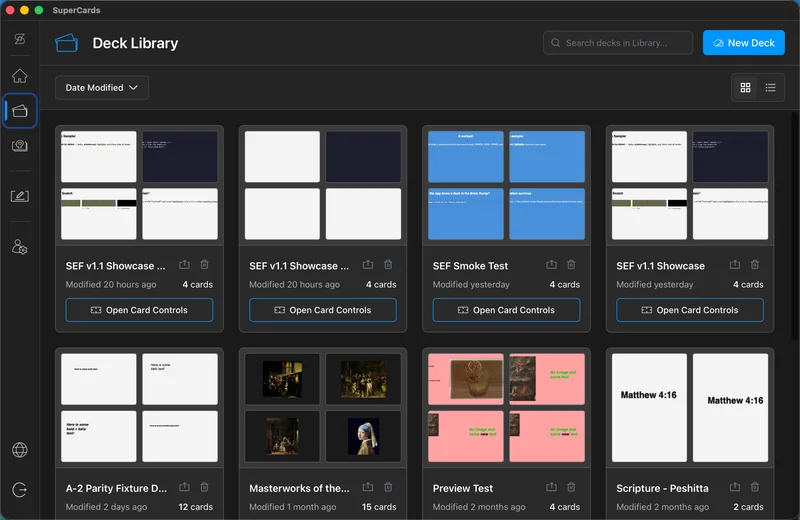
Organizing decks in the Library
The Library is home base for your decks: browse, search, reorganize, and jump into editing from one place.
Views and sorting
Toggle between a grid view (visual tiles with card previews) and a list view (a table with title, summary, card count, last modified, and storage location). Sort by date modified, alphabetical order, or card count.In list view you can edit a deck's title and summary inline — click the chevron next to a deck, make your changes, and press Enter.
Search
The search bar finds decks by title instantly, and searches inside card content once you've typed three or more characters. Pick a result and the Card Editor opens right at that card.Deck actions
Click a deck tile's preview to open it in the Card Editor, or open Card Controls to manage the cards inside. Right-click a deck in list view for the full menu: load it in the Card Editor, open Card Controls, or delete it (with confirmation — deleting a deck deletes all of its cards).If a deck is open in the Card Editor, the Library protects it: you can't delete a deck that's mid-edit elsewhere.
Inside a deck: Card Controls
Card Controls is the Library's deck-management view:- Reorder cards by dragging — the order you set is the order they play back in Study Mode
- Shuffle the whole deck with one click
- Move or duplicate cards between decks (right-click)
- Double-click a card to flip its preview between front and back
- Add Card to jump into the editor on a new card in this deck
Card order matters more than it may seem: for narrative decks, set lists, and playbooks, sequence is the point — arrange the deck once and it plays back in exactly that order on your iPhone.