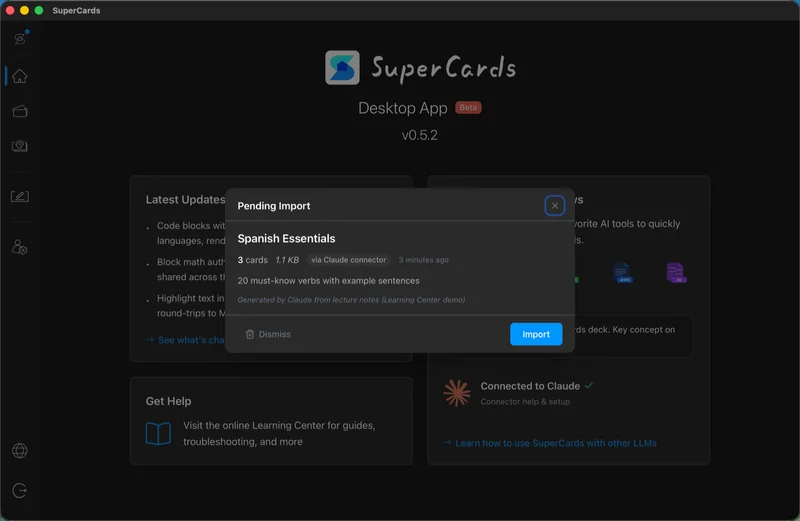
Importing decks: the inbox
Decks can arrive in SuperCards from outside the app — made by an AI assistant, shared by another person, or exported from another Mac. Everything routes through one place: the import inbox.
How decks reach the inbox
- Drag and drop a deck file onto SuperCards
- Double-click a .supercards deck file, or receive one via AirDrop and open it
- AI connectors — with Claude connected, finished decks are delivered straight to the inbox
When a new deck is waiting, SuperCards flags it quietly from the menu bar icon and in the main window — no pop-ups stealing focus.
Reviewing an incoming deck
The inbox shows you everything before anything happens: the deck's title, how many cards and images it contains, where it came from, and any validation warnings. Two buttons: Import adds it to your Library; Dismiss discards it. Nothing enters your Library without your click.If the deck references files it didn't bring along — say, the PDF an AI-generated deck was built from — the inbox shows a drop zone asking for them, and you can drag the files in.
Importing manually from the Deck Builder
You can also import without the inbox: in the Deck Builder, use the Import Cards section to select a folder containing a deck manifest — or choose a .supercards file directly. SuperCards validates it, fills in the deck details, and imports when you confirm.Whatever the source, imported decks are normal decks: edit them in the Card Editor, reorganize them in Card Controls, and study them on your iPhone.